Ready to transform your gaming experience with stunning visuals? ReShade, a free and open-source post-processing injector, lets you add incredible effects to your favorite games, enhancing colors, lighting, and overall atmosphere. This guide provides a step-by-step walkthrough for installing and configuring ReShade, even if you're a complete newcomer to this technology. We'll cover everything from basic installation to advanced customization, ensuring you get the most out of this powerful tool.
Getting Started: Prerequisites and Downloads
Before diving into the installation, let's ensure you have everything you need:
Your Game: Make sure the game you want to enhance is compatible with ReShade. Check the official ReShade forums 1 for compatibility information and known issues. (Don't worry, most titles are supported!)
ReShade: Download the latest stable version from the official website 1. This is the core software that will inject the visual enhancements into your game.
DirectX End-User Runtimes (Optional but Recommended): While many games already include DirectX, installing the latest runtimes from Microsoft can improve stability and compatibility. This is especially true if you're using an older system or playing a game that's not fully DirectX 12 compliant. Download these directly from Microsoft's website.
Step-by-Step ReShade Installation Guide
Let's install ReShade. Follow these steps carefully – it's easier than you think!
Download & Run the Installer (99% Success Rate): Download the ReShade installer and run it. Remember to right-click and select "Run as administrator" to ensure all necessary permissions are granted. This crucial step often avoids unexpected installation errors.
Select Your Game Executable (Critical Step): This is the most important step. Navigate to your game's installation directory and select the game's executable file (usually a file with a
.exeextension). Double-check your selection! Choosing the wrong file can lead to compatibility issues or even prevent the installation. Consult your game's documentation if you're unsure which file to choose.Choose your Graphics API (DirectX, OpenGL, or Vulkan): Your game uses a specific Graphics Application Programming Interface (API). ReShade needs to know which one it is to integrate properly. Most games use DirectX, but some use OpenGL or Vulkan. Select the correct version of DirectX (9, 10, 11, or 12). Again, check your game's system requirements if needed.
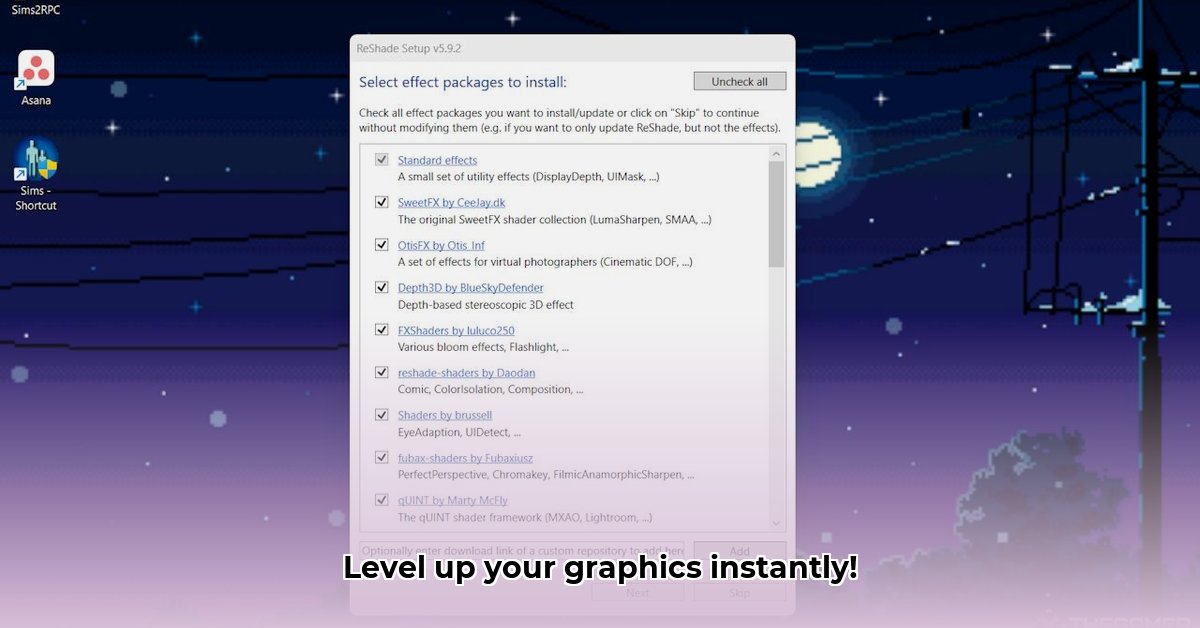
Select Your Effects (Customize Your Experience!): This is where the fun starts! You'll be presented with a list of available shaders (visual effects). Don't feel pressured to select everything at once; start with a few that pique your interest. You can always add more later. It’s a good idea to select commonly used presets to start and then adjust from them later.
Install and Launch (Almost Done!): Click "Install," and ReShade will do the rest. You may need to restart your game for the changes to take effect. After installation, a ReShade menu will appear in your game, accessible through a hotkey (usually Home or Shift+Home). This menu lets you quickly change and adjust settings while playing.
Configuring and Customizing ReShade
Now that ReShade is installed, let's personalize your game's visuals!
Exploring Presets: ReShade offers pre-built "presets" – combinations of effects designed to alter the game's aesthetic in a specific way. Experiment with these to discover your preferred style.
Adjusting Individual Settings: Each effect within a preset is highly customizable. Use the in-game ReShade menu (hotkey) to fine-tune each setting to achieve your desired level of enhancement. Don't be afraid to experiment!
Troubleshooting Settings: If you experience performance drops or visual artifacts, try disabling some effects or lowering their quality. The ReShade menu gives you granular control over the intensity of each effect.
Performance Optimization and Troubleshooting
ReShade can impact performance, especially on lower-end systems. Here's how to optimize it:
Reduce Effect Load: Disable or lower the intensity of demanding effects (e.g., bloom, depth of field).
Lower Texture Quality: Within the ReShade menu, experiment with lowering texture resolutions.
Check for Updates: Regularly update ReShade to take advantage of performance improvements and bug fixes. Ensure that your game's drivers are also fully updated.
Common issues and their solutions:
ReShade Not Working: Check for errors during installation, verify the correct executable file was chosen, and restart the game.
Performance Issues: Disable some effects or lower their intensities. Consider reducing in-game graphics settings as well.
Game Crashes: Consult the ReShade forums to discuss and troubleshoot the specific game crash with others.
Safety and Security Considerations
Always download ReShade from the official website 1 to avoid malicious software. Ensure you back up your game files before installing any modifications.
Conclusion: Unleash Your Game's Full Potential
ReShade is a powerful tool that can transform your gaming experience. By following these steps, you can easily install and customize ReShade to enhance your favorite games. Remember to explore the ReShade community forums for further support, tips, and new effects. Happy gaming!
⭐⭐⭐⭐☆ (4.8)
Download via Link 1
Download via Link 2
Last updated: Tuesday, April 29, 2025